Defining a Digital Twin Model
Define the properties of the model and specify the ones the algorithm should train on. The ScaleOut Machine Learning Training Tool will extract the properties from an existing model and match them with the training data.
Note
Only numerical properties stored as Single (or float) are supported by the ML.NET libraries.
In this tutorial, we will define a digital twin model named SensorsRTModel containing three Single properties representing the properties the model is tracking (temperature, friction, and RPM) and a String property representing the status of the mechanical parts.
Start by creating a Digital Twin solution by using the solution template provided by ScaleOut Software (for details, refer to Creating a Digital Twins Solution)
dotnet new dt-sln -n Sensors
This command creates a solution with model, message and message handler classes. In the project, rename the ExampleMessage class to SensorsMessage and add three Single properties representing the sensor data: temperature, friction, and RPM.
public class SensorsMessage
{
    public Single Temperature { get; set; }

    public Single Friction { get; set; }

    public Single RPM { get; set; }
}
In the model, define the 4 properties we mentioned earlier.
public class SensorsRTModel : DigitalTwinBase<SensorsRTModel>
{
    public Single Temperature { get; set; }

    public Single Friction { get; set; }

    public Single RPM { get; set; }

    public String Status { get; set; }
}
In the template-generated MessageProcessor class, assign the properties from the incoming message to the digital twin instance.
public override async Task<ProcessingResult> ProcessMessageAsync(ProcessingContext<SensorsRTModel> context, SensorsRTModel digitalTwin, byte[] msgBytes)
{
    SensorsMessage? message = System.Text.Json.JsonSerializer.Deserialize<SensorsMessage>(msgBytes);
    if (message is null)
    {
        _logger.LogWarning("Message deserialization failed.");
        return ProcessingResult.NoUpdate;
    }

    // Assign new values
    digitalTwin.Temperature = message.Temperature;
    digitalTwin.RPM = message.RPM;
    digitalTwin.Friction = message.Friction;

    return ProcessingResult.DoUpdate;
}
Compile the digital twin model.
To deploy your model, you will need to publish it to a zip file. Right-click on the model project and select Publish.
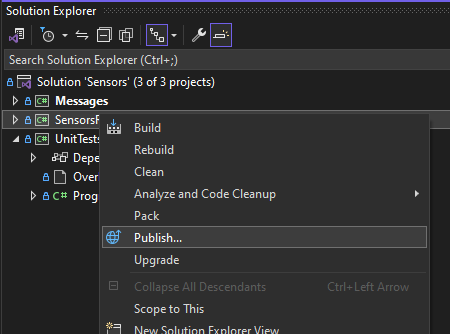
Then in the list of choices, select the one that matches the platform you will be using the model on (Windows/Linux)
