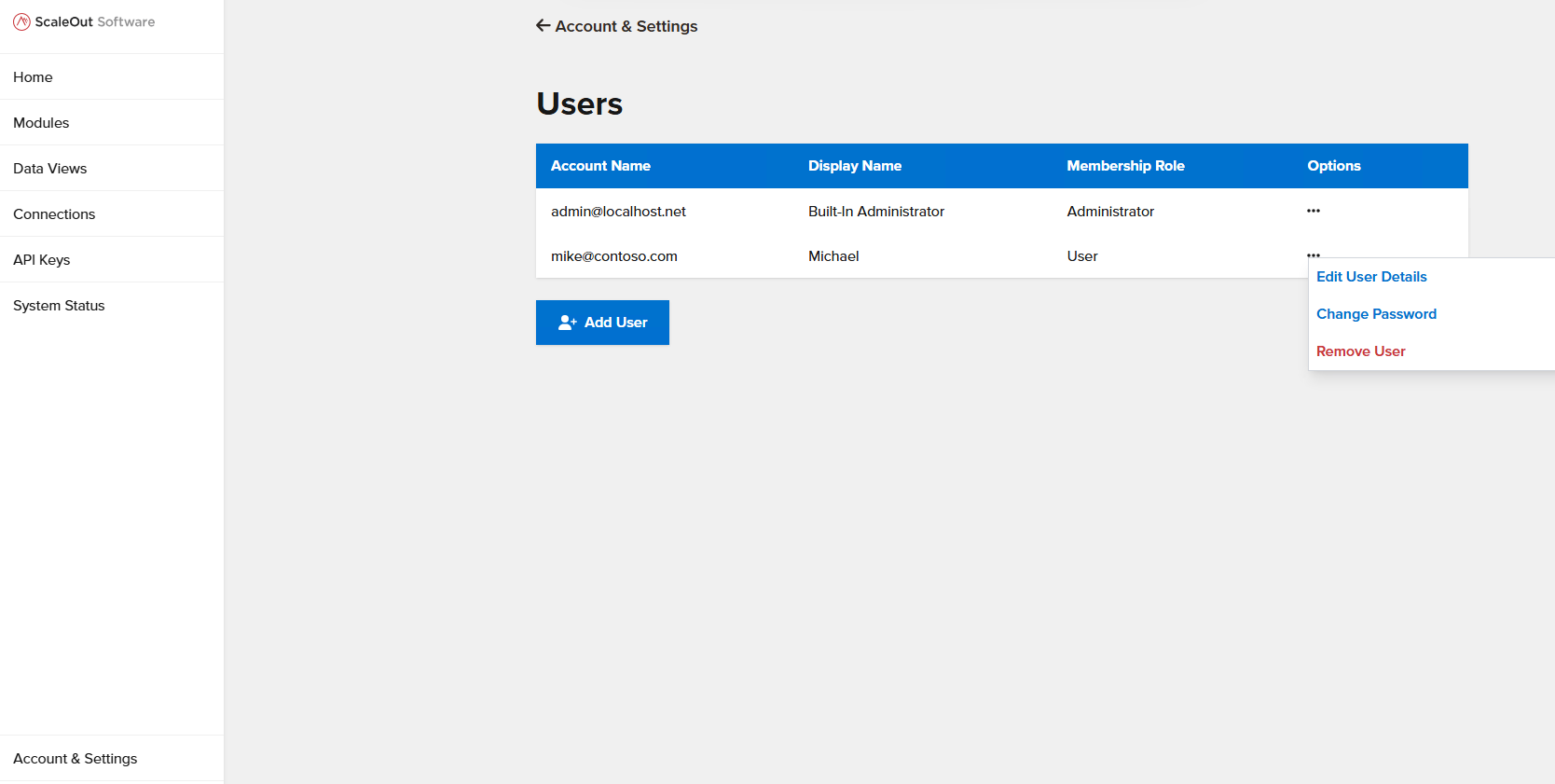
Manage Users And Roles
First Time Login
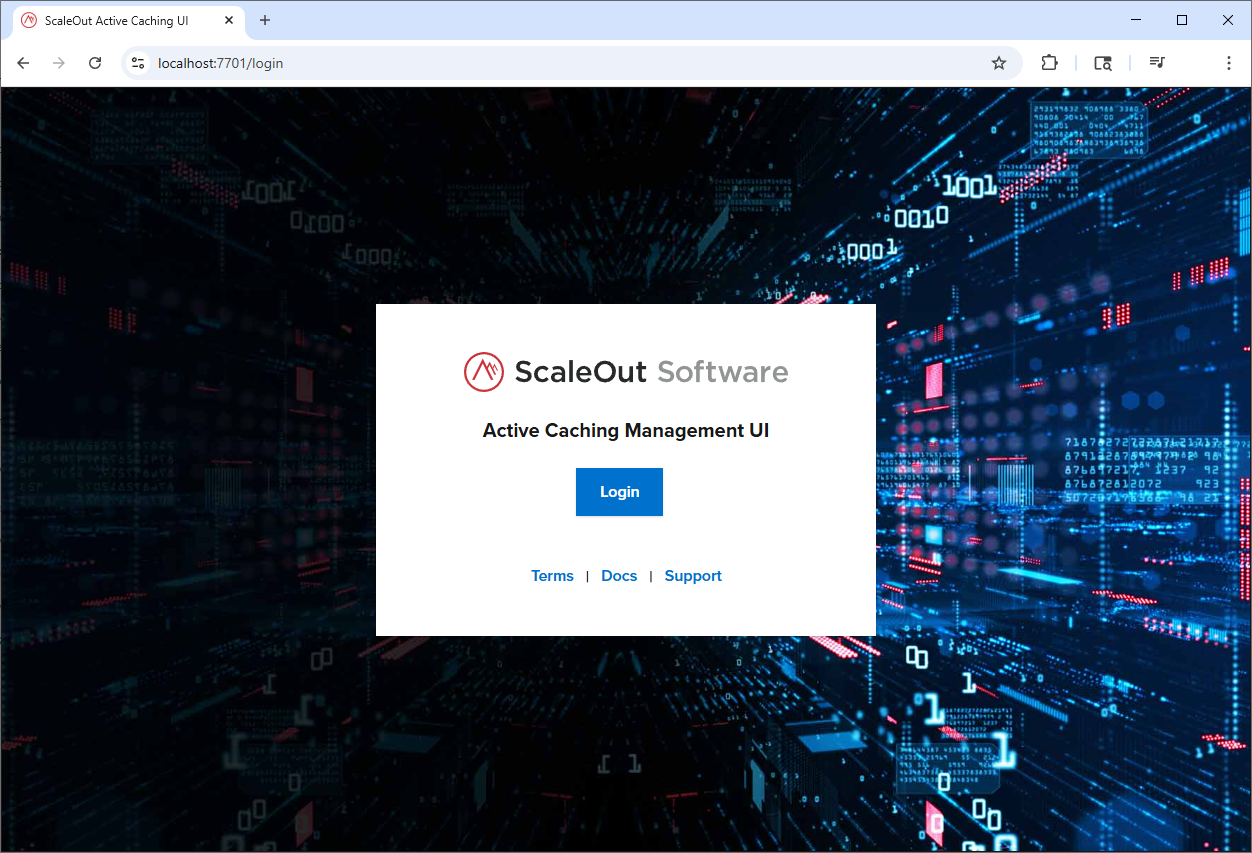
Press Login to authenticate.
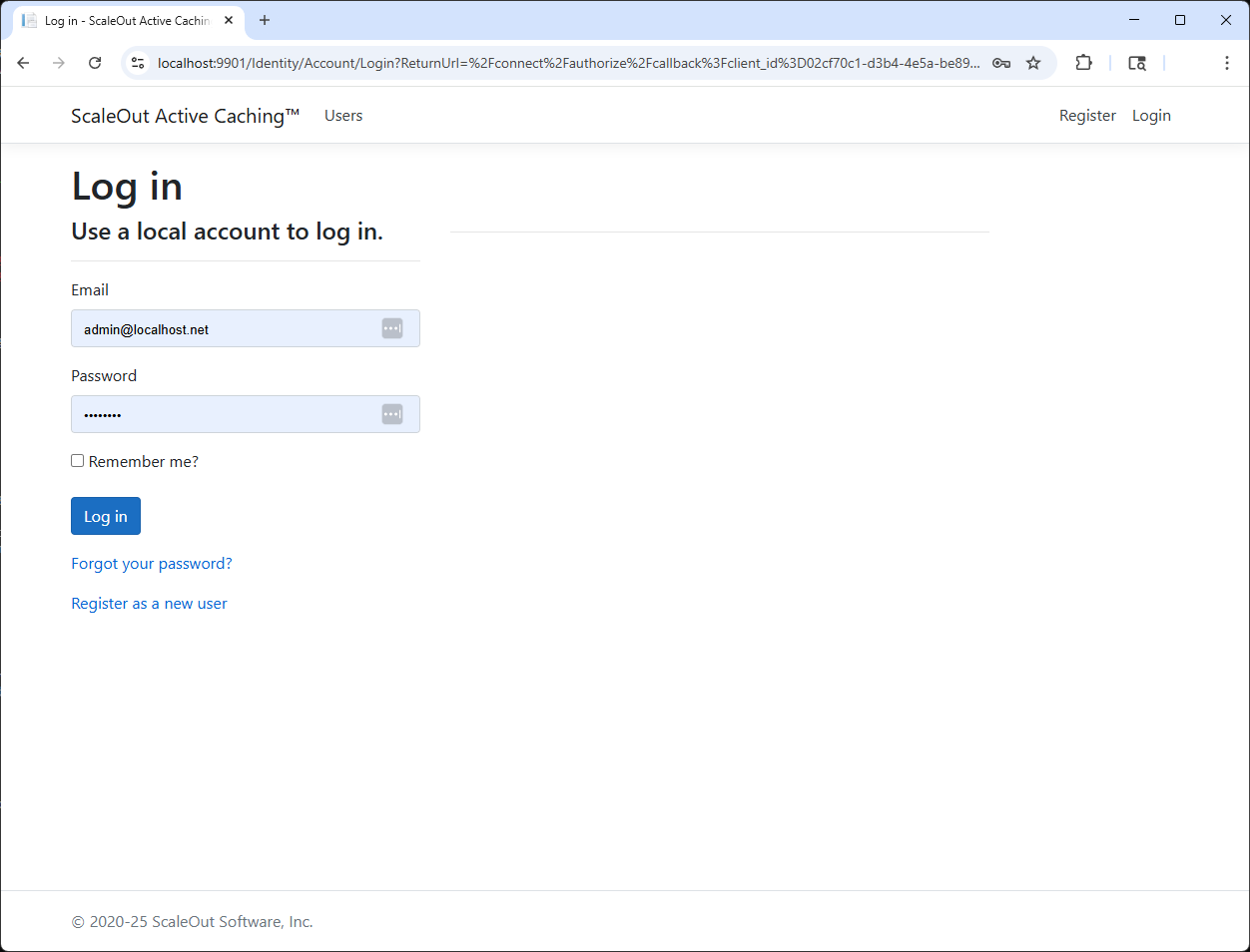
For the first time log-in, you will need to use the built-in administrator account:
Email:
admin@localhost.netPassword:
Sc@le0ut
Note
For obvious security reasons, it is recommended to change the password of the built-in administrator as soon as possible.
Manage Users
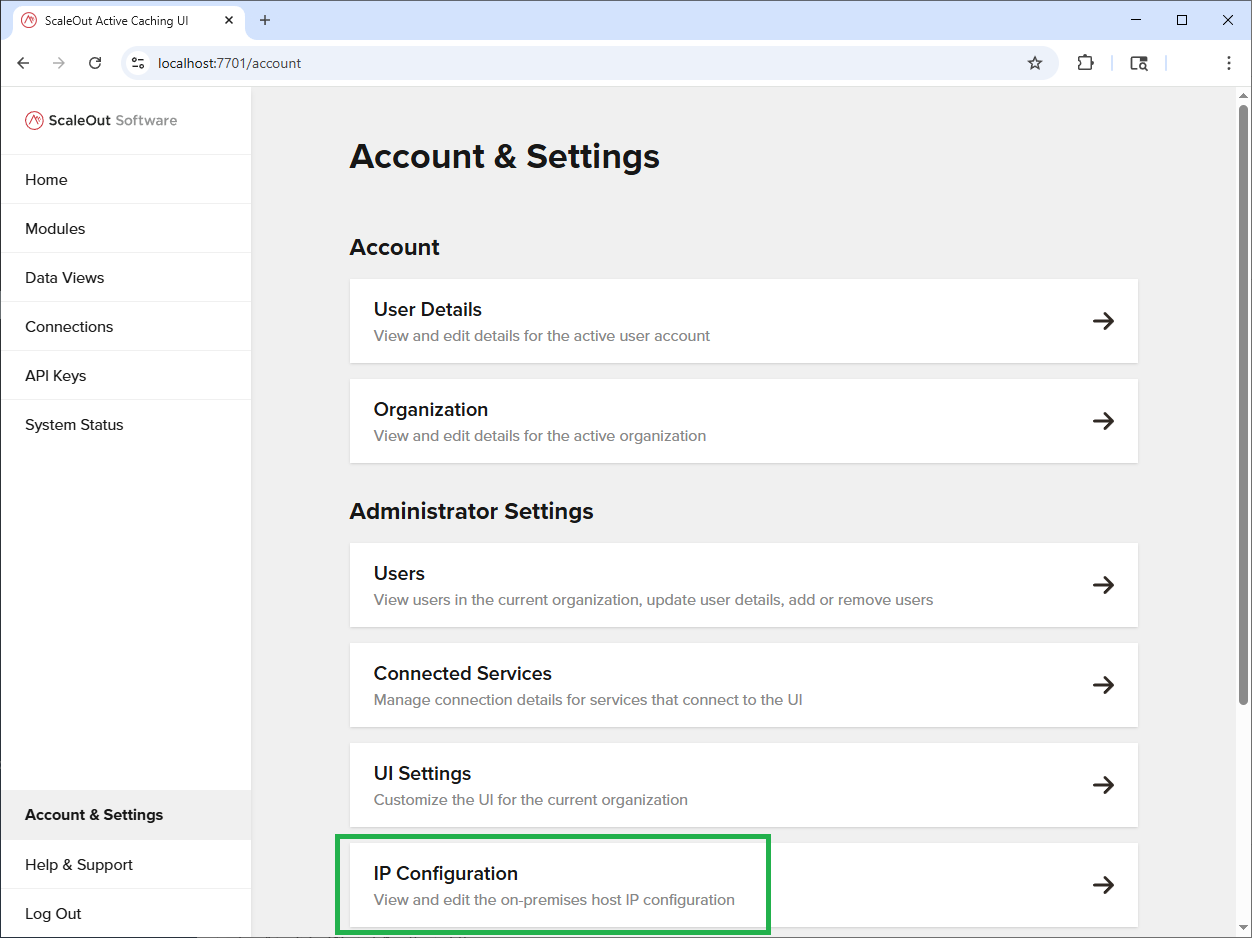
Users can be added or removed in the Accounts and Settings page, under the Administrator Settings in the Users page. Note that this page is only available when you
are logged on as an administrator.
The current users and their membership roles are listed on that page.
Add a User
To add a new user, click Add User.
Enter the details for the new user, and assign a temporary password for them. Pick a membership role (default is a simple user with no administrator privileges) and confirm by
clicking Add User.
The new user has now successfully been added and is listed in the main user view.
Edit or Remove a User
To remove or edit an existing user, open the main user view and click on the ... to pop up the menu for that user.