Shared Data
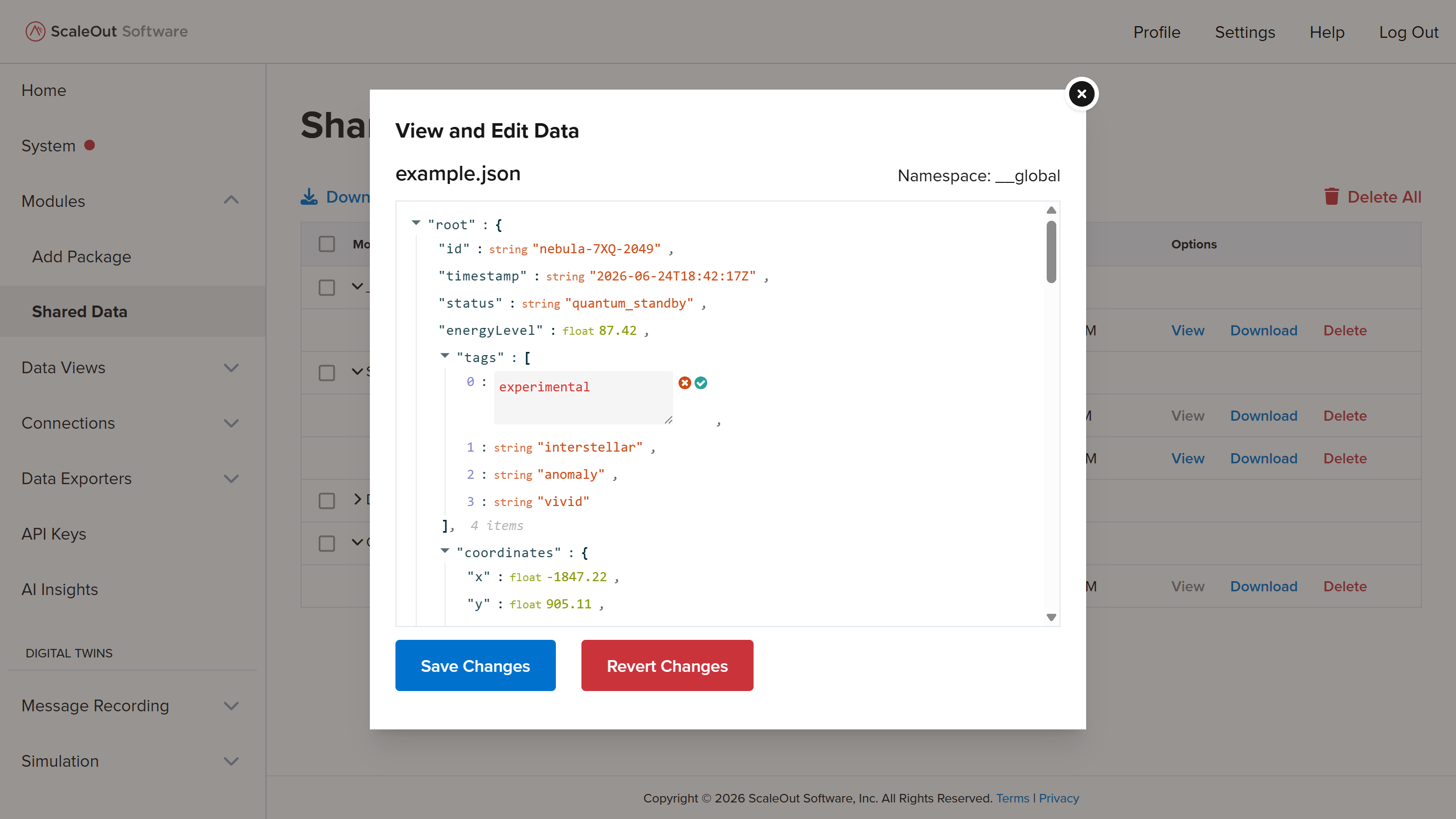
This section describes how to upload and manage shared data.
Viewing Shared Data
To view the shared data page, navigate to Modules > Shared Data in the sidebar. This page shows a table of shared data objects grouped by namespace. The number in parentheses to the right of the namespace name indicates how many objects it contains. Click on a namespace row to expand and show all objects.
Uploading Shared Data Files
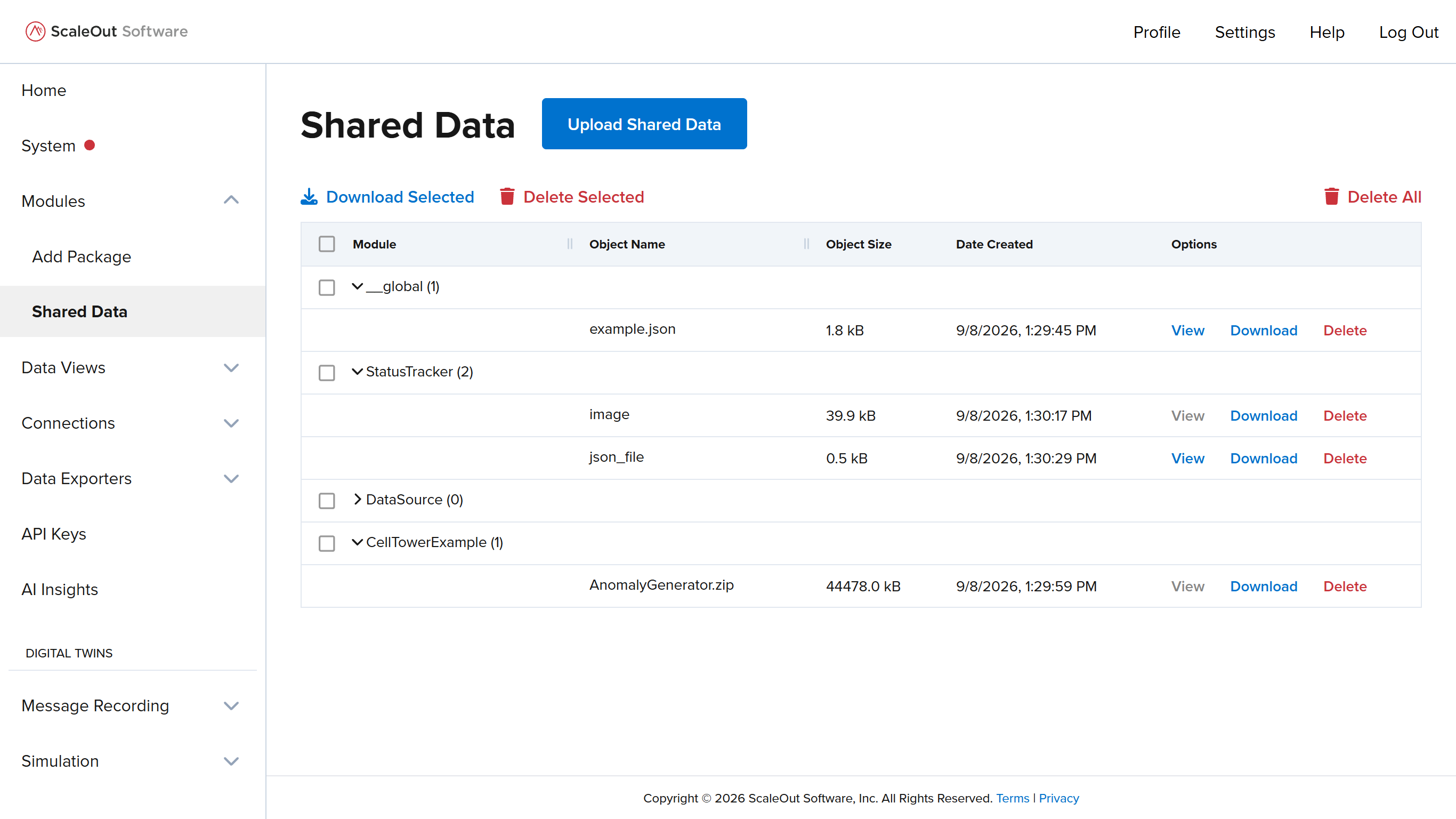
You can upload shared data files of any type. To upload a new file, click the Upload Shared Data button at the top of the screen. In the modal window, follow these steps:
Click
Select Fileand choose a file from your filesystem.Optionally give the shared data object a name.
Select a namespace (module or global) for the shared data object.
Click
Upload.
Note
Include the extension (e.g., .zip, .json) in the object name if you would like to preserve the file type when downloading the file later. Otherwise the file will be downloaded as bytes. If the name field is left blank, the filename (including the extension) will be used.
Editing Shared Data JSON
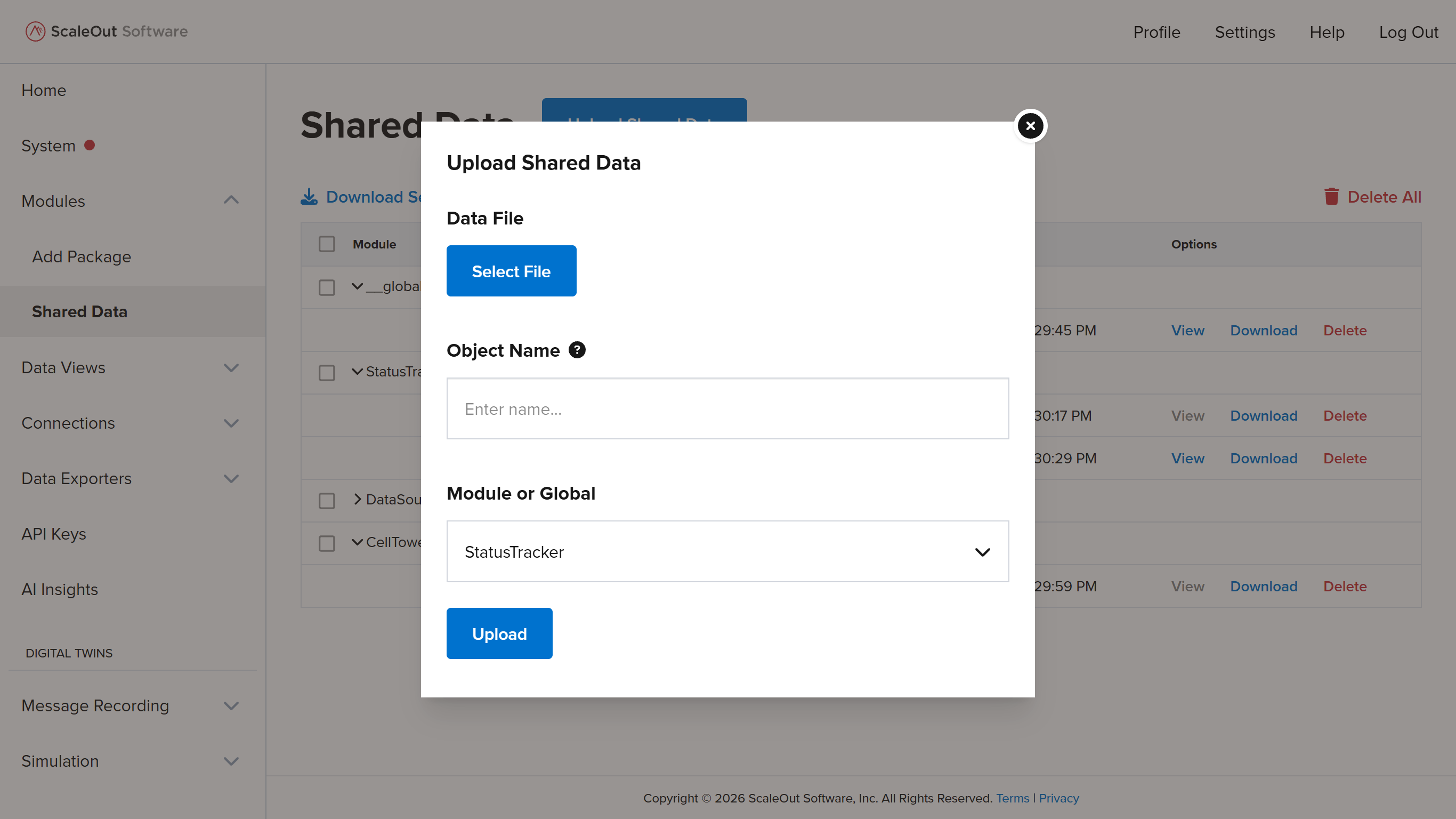
Shared data JSON files can be viewed and edited directly in the UI. To view or edit a JSON file, find the file in the table and click the View button in the table row. The modal window shows the contents of the JSON file. To add, edit, or delete properties, mouse over the JSON and use the inline controls. When you are done editing, click Save Changes to apply the changes, or Revert Changes to restore the file to the last saved version.