Message Recording
This section explains how to create a new message recording, save recordings to persistent storage, stage recordings for playback, and delete recordings.
Note
Message recording is currently only supported for Digital Twin modules.
Starting a Recording
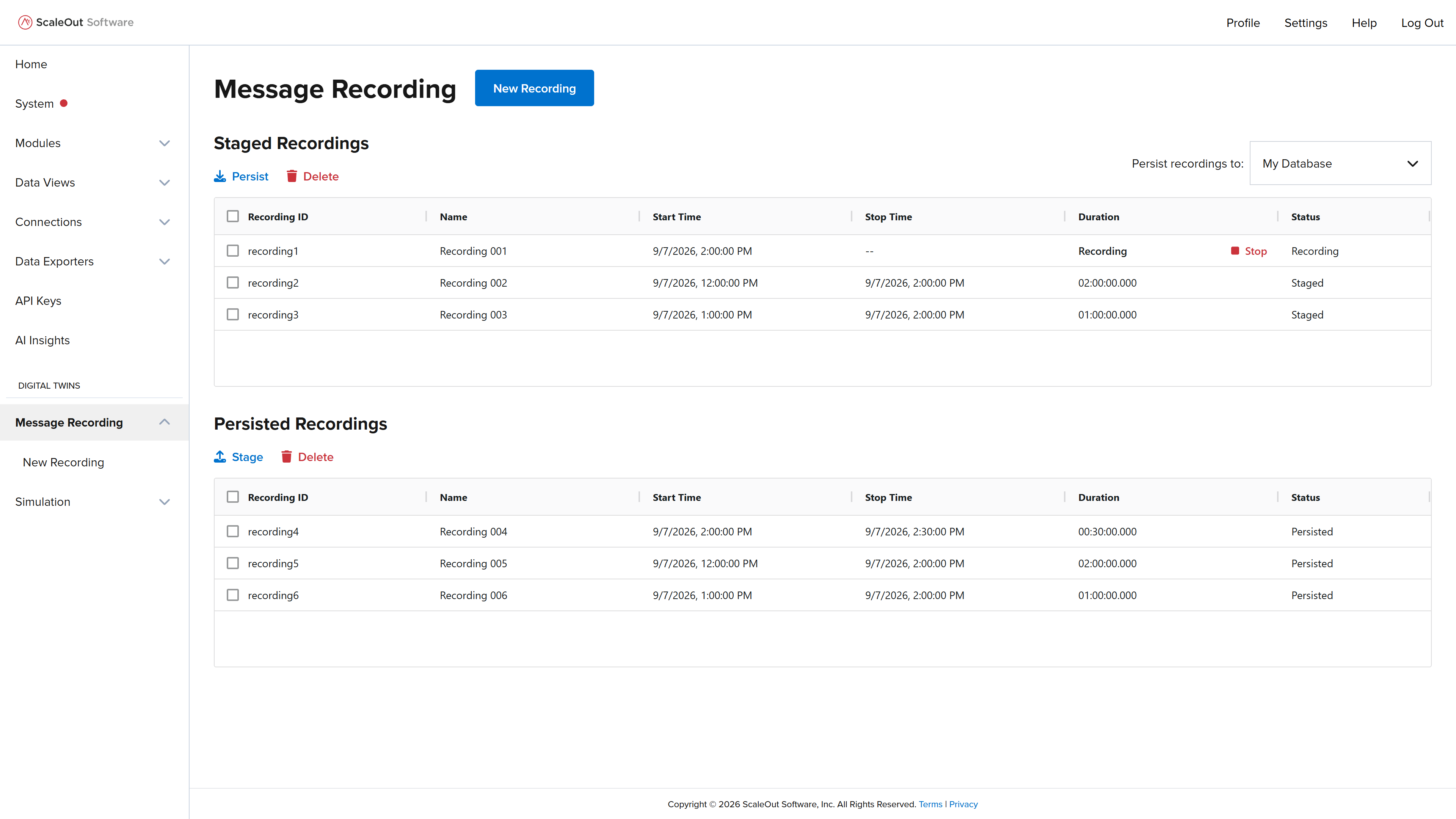
To start a new recording, first navigate to the New Message Recording page by selecting Message Recording > New Recording in the sidebar, or by going to the Message Recording page and clicking the New Recording button at the top.
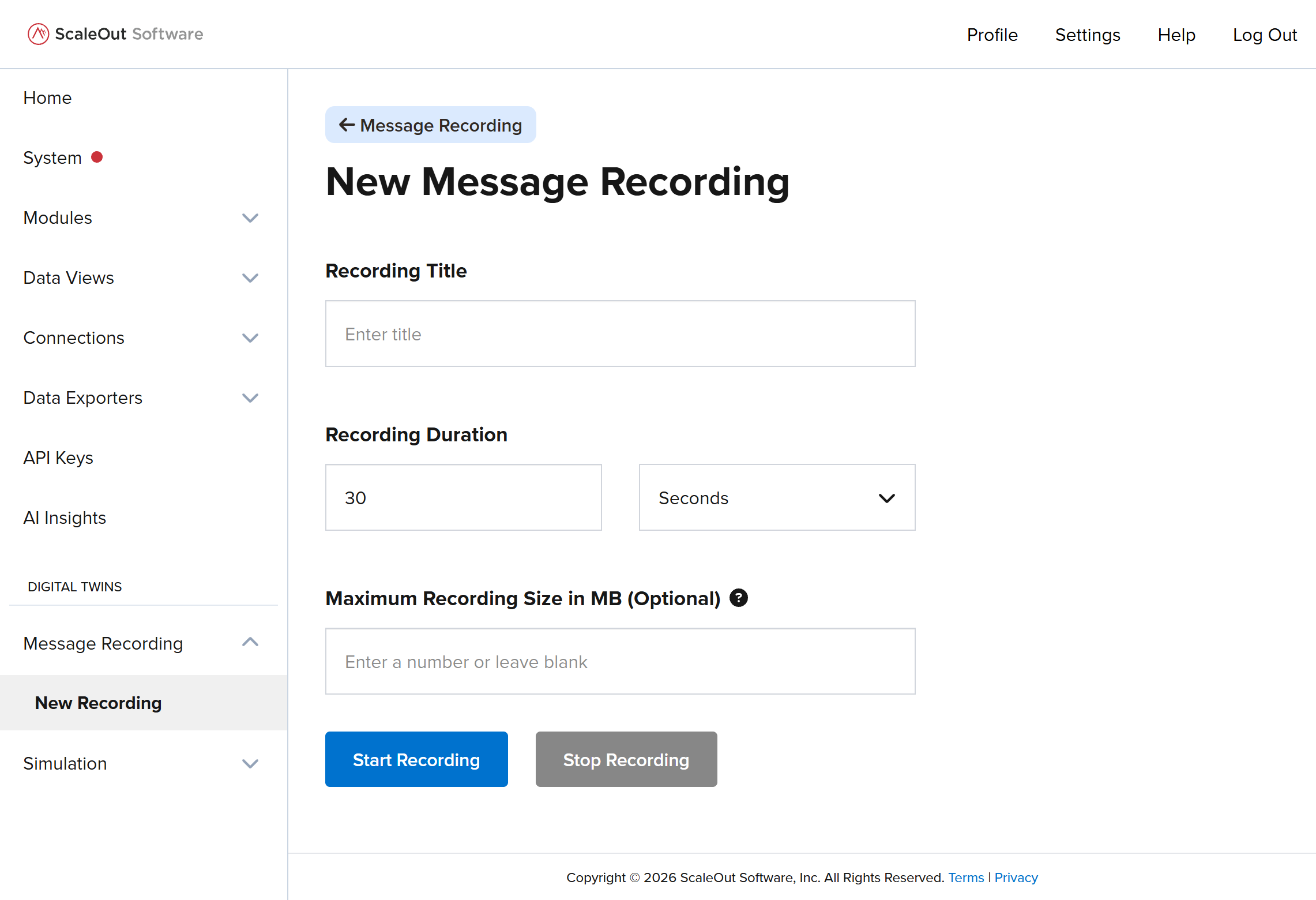
Enter a title for the new message recording and specify a duration. You can also optionally specify a maximum recording size. Then click the Start Recording button to start the message recording.
Note
The message recording ID will be assigned automatically.
Stopping a Recording
The message recording will stop automatically once it reaches the specified duration. To stop it sooner, you can use one of these methods:
Method 1
Go to the Message Recording page.
In the Staged Recordings table, locate the Duration column and find the row for the recording you would like to stop.
Click the
Stopbutton to stop the recording.
Method 2
Go to the New Message Recording page. The page will indicate that a recording is in progress.
Click the
Stop Recordingbutton to stop the recording.
Persisting Recordings
You can persist recordings to a persistence provider, such as a SQL Server or SQLite database, to save them and restore them for later playback.
Selecting a Persistence Provider
First, ensure the persistence provider you would like to use is added to the system. If you have not already done so, go to the Connections page and add it as a persistence connection.
Returning to the Message Recording page, a list of all available persistence providers is shown in the Persist recording to dropdown list at the top right of the page. Select the one you would like to use. Any recordings that are already persisted will appear in the Persisted Recordings table.
Persisting Staged Recordings
In the Staged Recordings table, select the recordings you would like to persist by using the checkboxes. Click the Persist button above the table to begin the persistence operation. The operation will continue in the background until it is complete; the Status column in both tables shows the current status of each recording.
Note
You should only persist recordings that have a status of Staged. Attempting to persist recordings with an operation already in progress may cause errors.
Note
It is not possible to persist an empty message recording (one that contains no messages).
Staging Recordings
You can stage recordings from a selected persistence provider to replay them in a message playback simulation.
In the Persisted Recordings table, select the recordings you would like to stage by using the checkboxes. Click the Stage button above the table to begin the staging operation. The operation will continue in the background until it is complete; the Status column in both tables shows the current status of each recording.
Note
You should only stage recordings that have a status of Persisted. Attempting to stage recordings with an operation already in progress may cause errors.
Deleting Recordings
You can delete staged or persisted recordings by making a selection with the checkboxes, then clicking the Delete button above the respective table.
Note
If a recording is both staged and persisted, a single Delete operation will not delete it from both places. For example, if you delete it from the Staged Recordings table, it will remain in persistent storage. If you delete it from the Persisted Recordings table, it will remain staged and can be persisted again later if desired.