Simulation
This section explains how to start and manage a simulation.
Note
Simulation is currently only supported for Digital Twin modules.
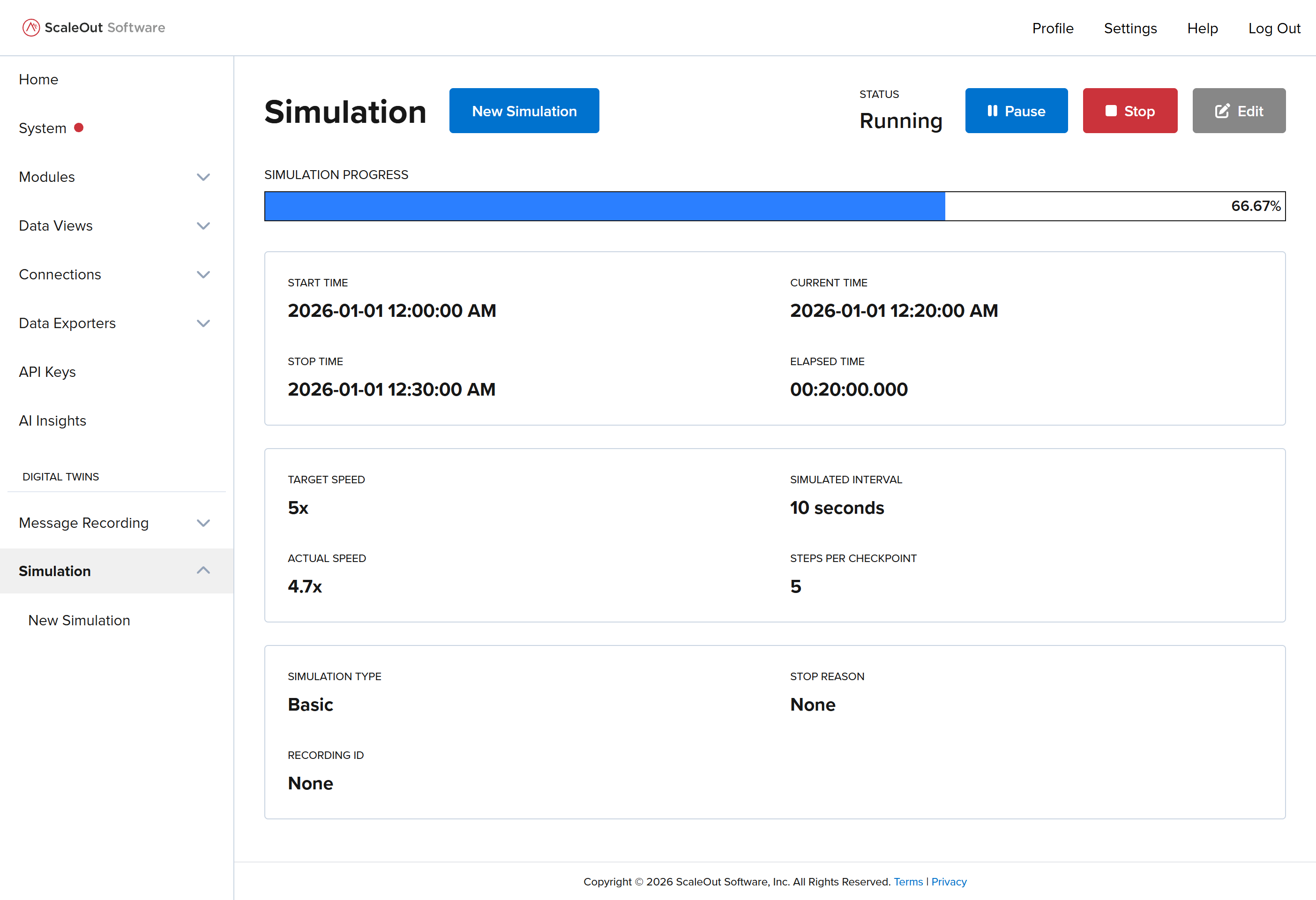
Starting a Simulation
To start a new simulation, navigate to the Simulation > New Simulation page in the sidebar, or go to the Simulation page and click the New Simulation button.
There are two types of simulation:
Basic Simulation, which runs user-defined digital twin simulation code, and
Message Playback Simulation, which replays a digital twin message recording.
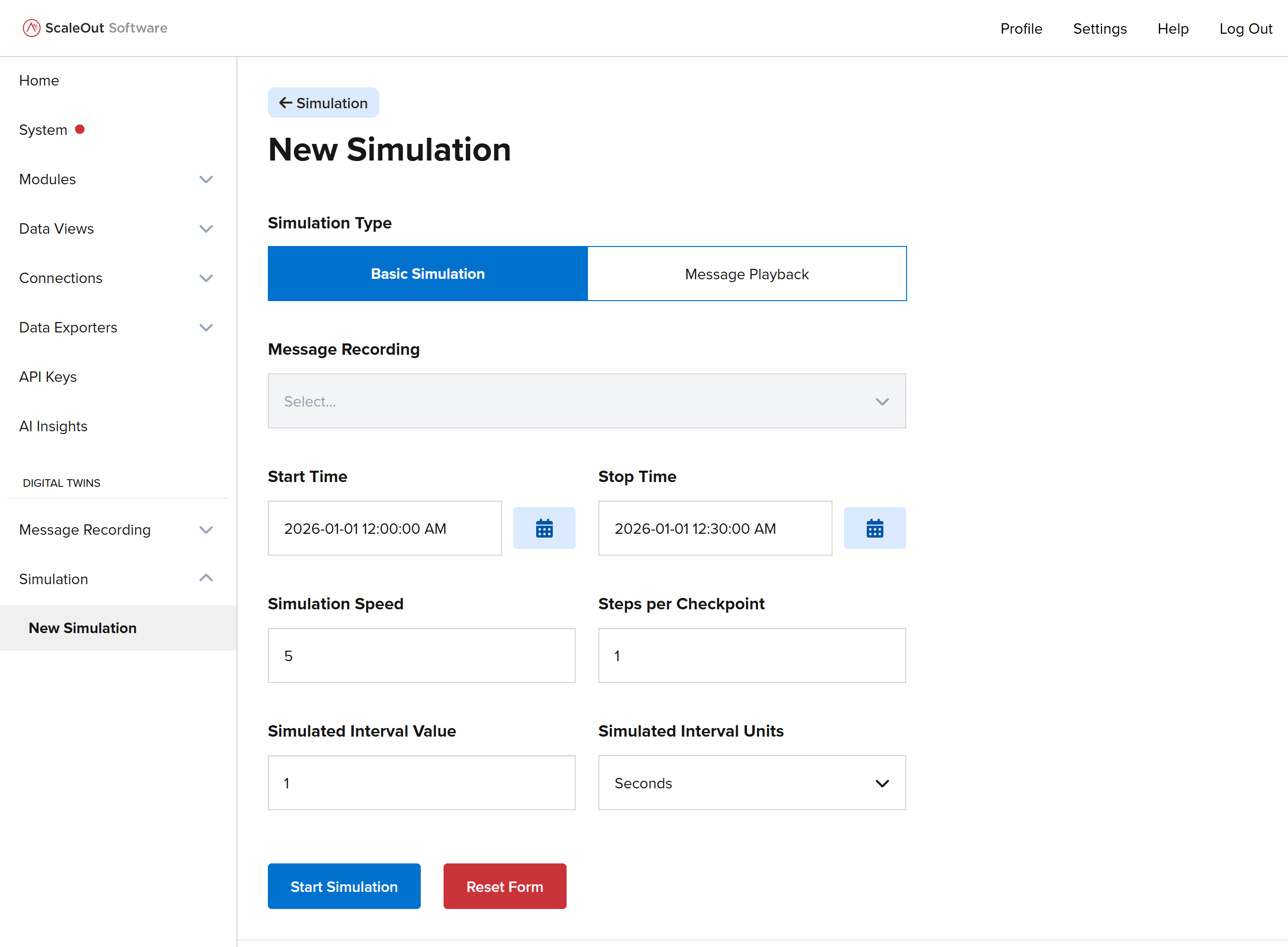
Basic Simulation
To start a basic simulation, first select Basic Simulation for the simulation type. Then specify the remaining simulation parameters and click Start Simulation.
Message Playback Simulation
To start a message playback simulation, first select Message Playback for the simulation type. Then select a message recording from the dropdown menu, specify the remaining simulation parameters, and click Start Simulation.
Note
Start Time and Stop Time fields are disabled for message playback simulations because they are already specified in the message recording. If there are no message recordings in the system, you will not be able to start a message playback simulation.
Managing a Simulation
While a simulation is running, you can view its status, pause it, edit it (when paused), resume, or stop.
Pausing and Resuming
To pause a running simulation, click the Pause button at the top right of the screen. To resume a paused simulation, click the Resume button.
Editing Simulation Parameters
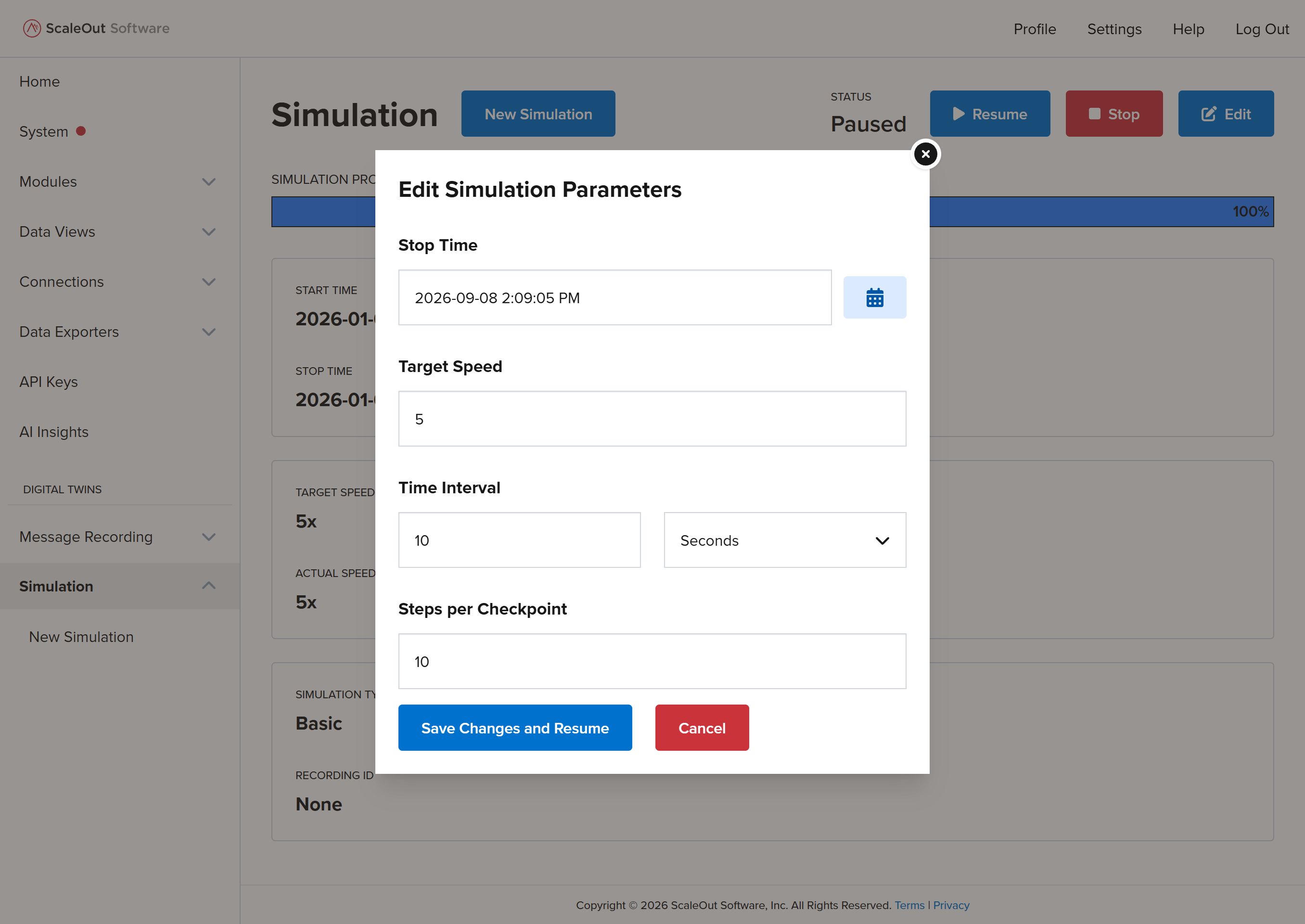
To edit a running simulation, first pause it by clicking the Pause button. Then click the Edit button to bring up the modal editing window. Enter the new simulation parameters and click Save Changes and Resume to apply the changes, or Cancel to close the window without applying the changes.
Stopping a Simulation
To stop a running simulation, click the Stop button at the top right of the screen.