Message Recording
Message recording lets you capture and store messages for later analysis and replay them as part of the simulation process. The following sections explain how to record and manage messages.
Creating a Message Recording
To create a new message recording, either select Create Recording in the left-side navigation bar under Message Recordings or press the Create Recording button on the top on the Manage Recordings screen:
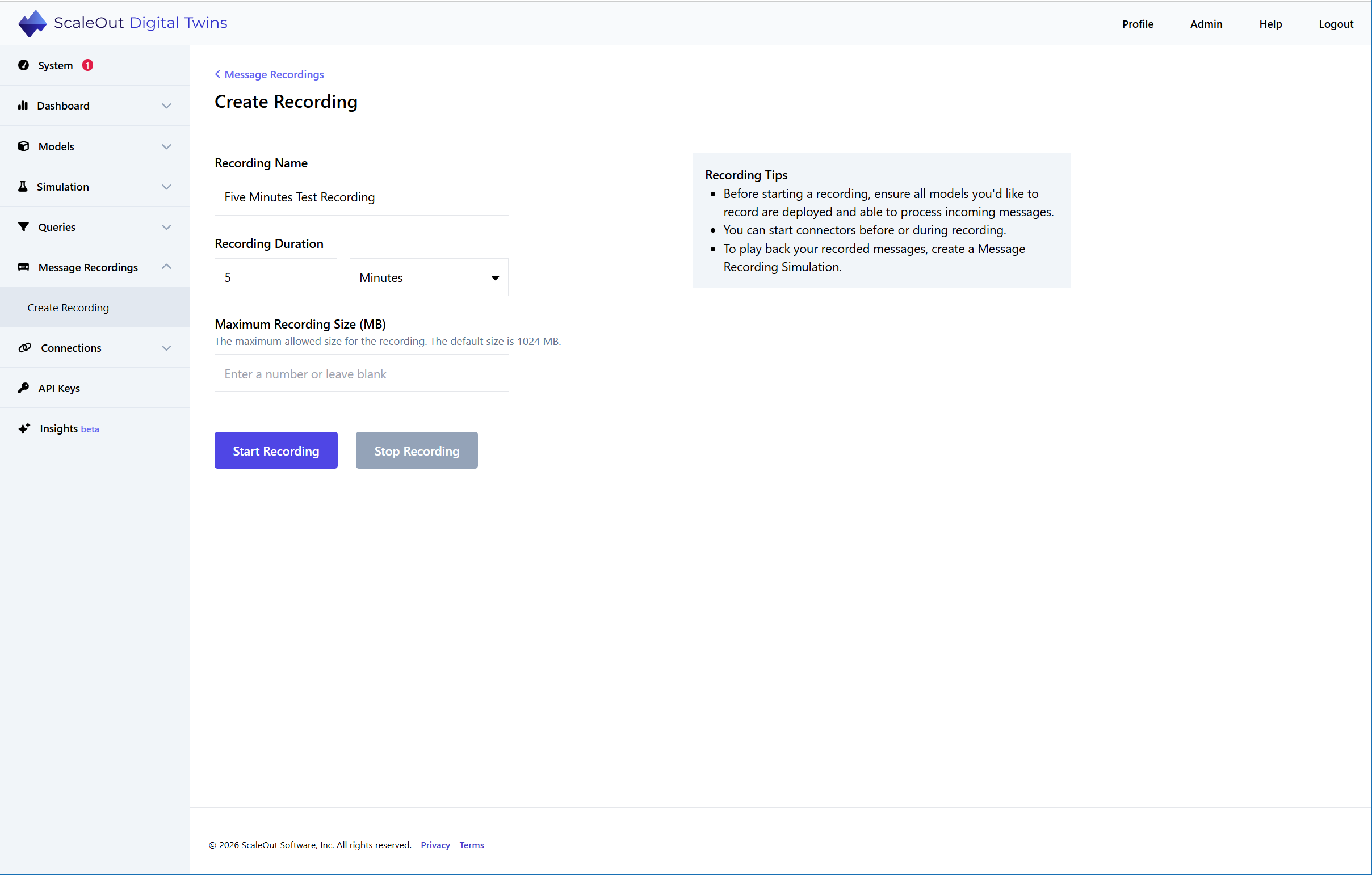
Specify the name of the recording and the recording duration. To start the recording session, click the Start Recording button. When the message recording is started, it will be added to the upper Staged Recordings table on the Manage Recordings page. You can stop the recording earlier by clicking the Stop button in the Duration column in the table. Otherwise, the recording will automatically stop after the specified duration. Once the recording is stopped, it will be available for use in simulations for the Message Playback simulation type. (You can learn more about that on the Starting a Simulation screen topic.)
You can delete completed (or staged) recordings by selecting one or more of them and clicking the Delete Selected button on the table toolbar.
Managing Message Recordings
This screen shows all message recordings created by all users.
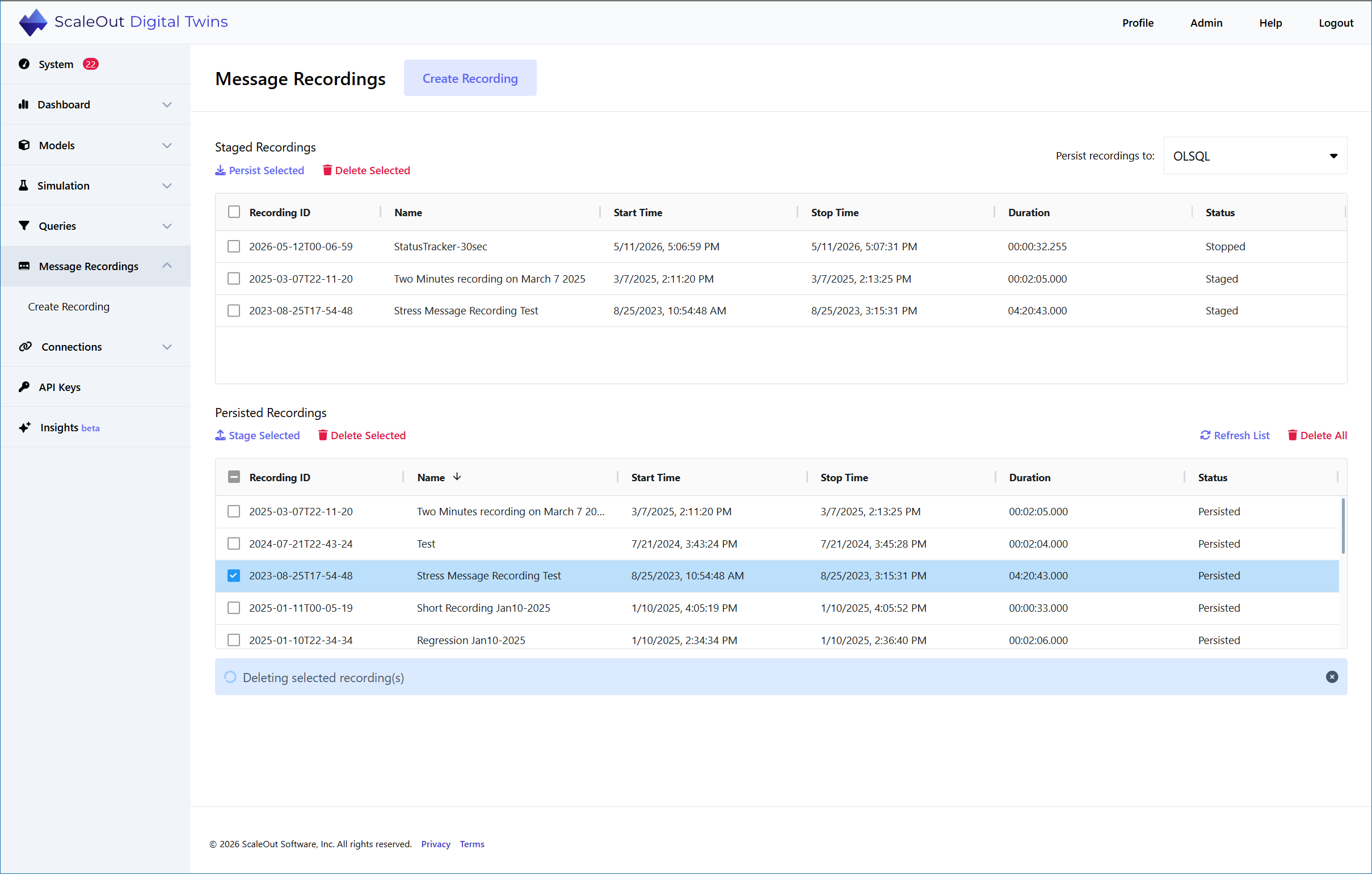
If you have configured a persistence provider of type SQL Server or SQLite, you can select it from the dropdown menu at the top of the page to view recordings that have been saved to the corresponding database. These recordings are displayed in the Persisted Recordings table below.
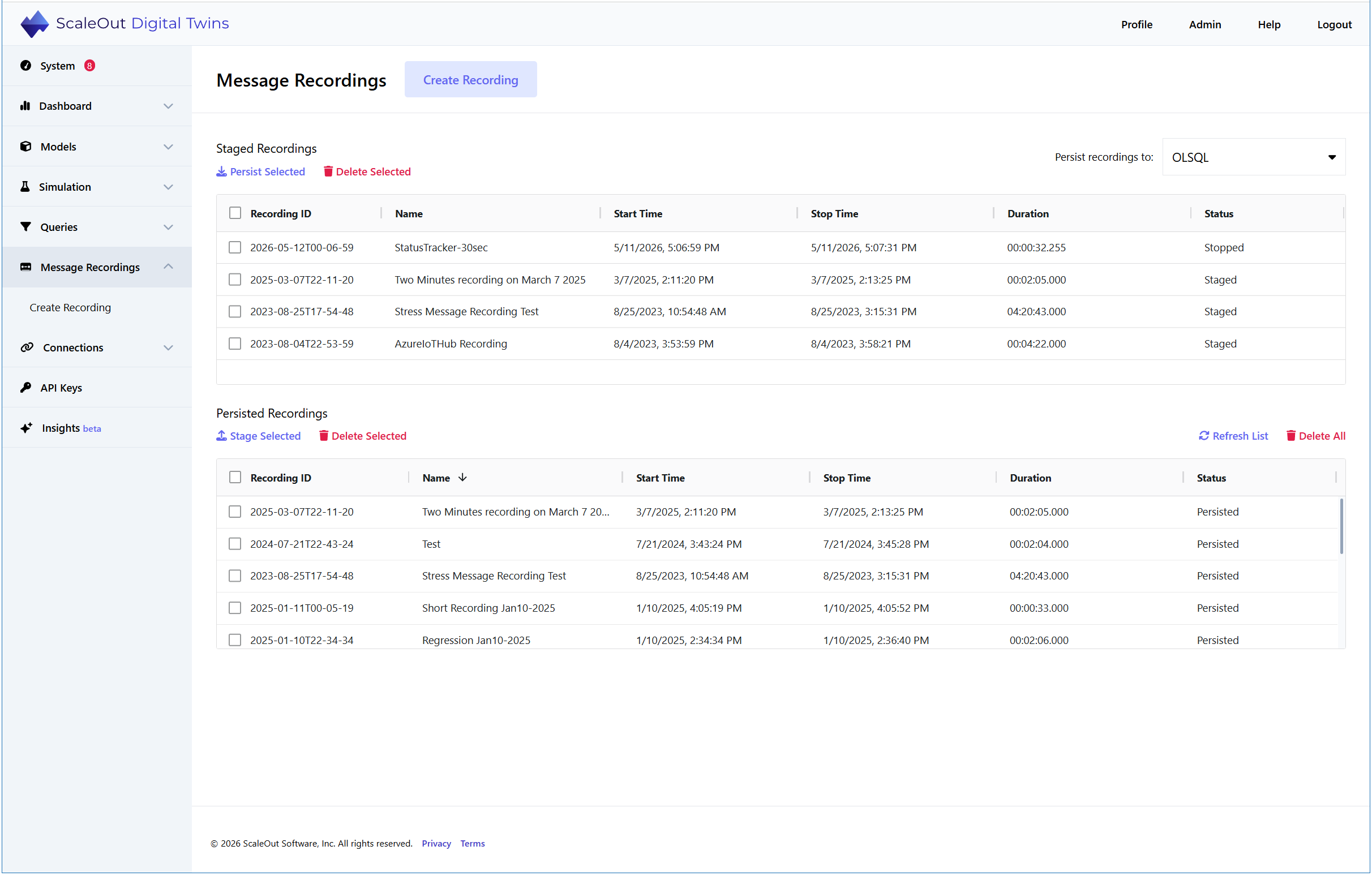
You can persist newly created recordings to the database and stage back previously persisted recordings. Staged recordings are stored in the C:\ProgramData\ScaleOut Software\MessageRecordings folder on Windows (or in the /usr/share/scaleout/message-recordings folder on Linux) and are immediately available for use in simulations. Persisted recordings are stored in the configured database and are not available for use in simulations until they have been staged.
You can delete recordings from both tables. You can also sort the recordings in both tables by clicking on the corresponding column header.
The following sections explain how to persist and stage message recordings.
Persisting Message Recordings
To persist existing message recordings to the database, first configure the persistence provider type as either SQL Server or SQLite. (For more information about how to add and configure a persistence provider, see the SQL Database topic.) Once the provider is configured, select it from the dropdown menu in the top-right corner of the page. Then, select one or more recordings in the Staged Recordings table and click the Persist Selected button on the table toolbar.
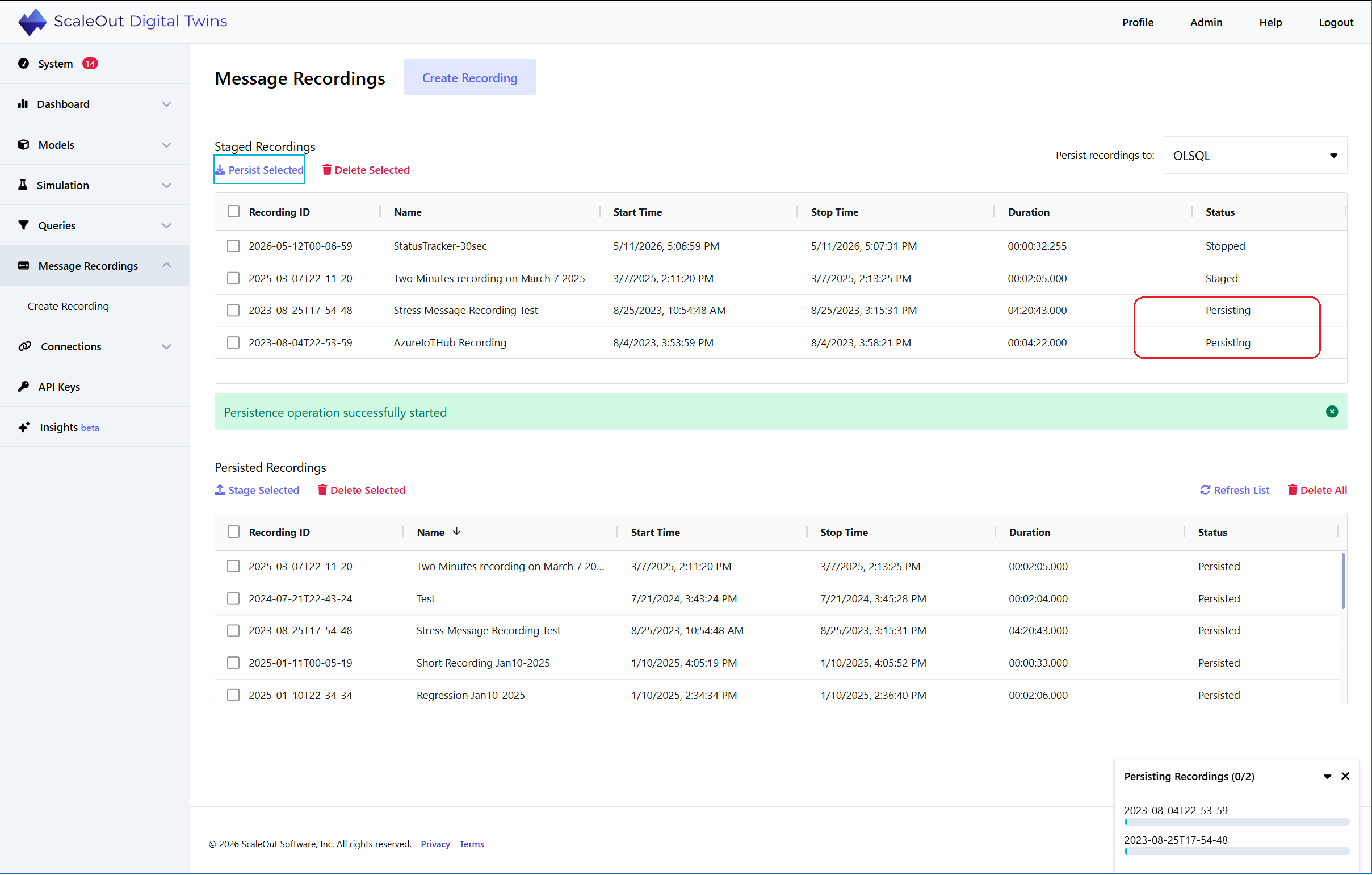
You can delete persisted recordings by selecting one or more of them and clicking the Delete Selected button on the table toolbar.
Staging Message Recordings
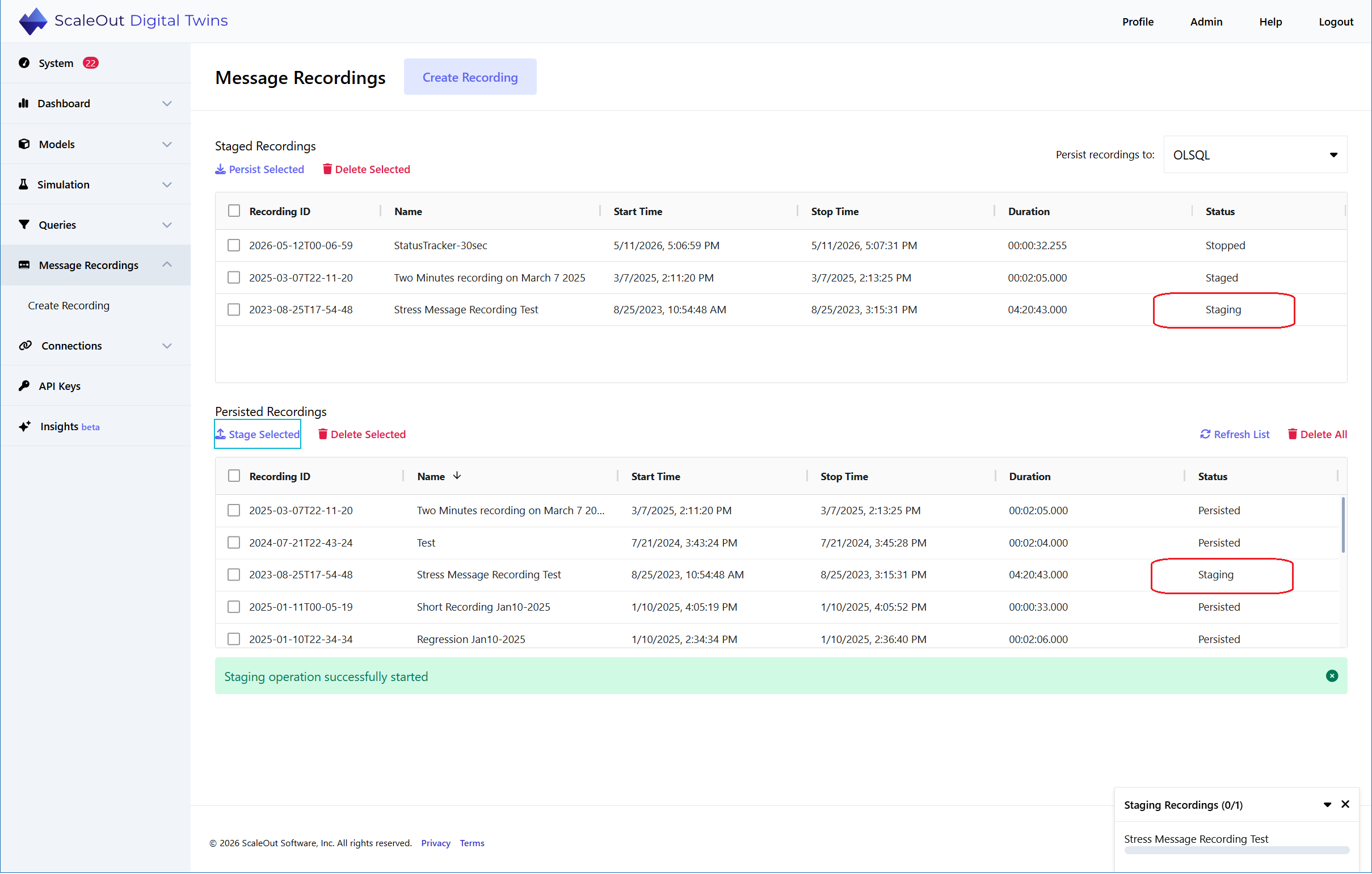
You can also stage persisted recordings from the database to make them available for use in simulations. To do so, select one or more recordings in the Persisted Recordings table and click the Stage Selected button.