User Accounts
As a user, you can view your profile and manage your account settings. Administrators can also add users, change user privileges, and remove users from the system. Administrator tools for managing users are discussed further in the Administrator Options section.
Viewing Your Profile
To view your profile, select the Profile link in the top navigation bar.
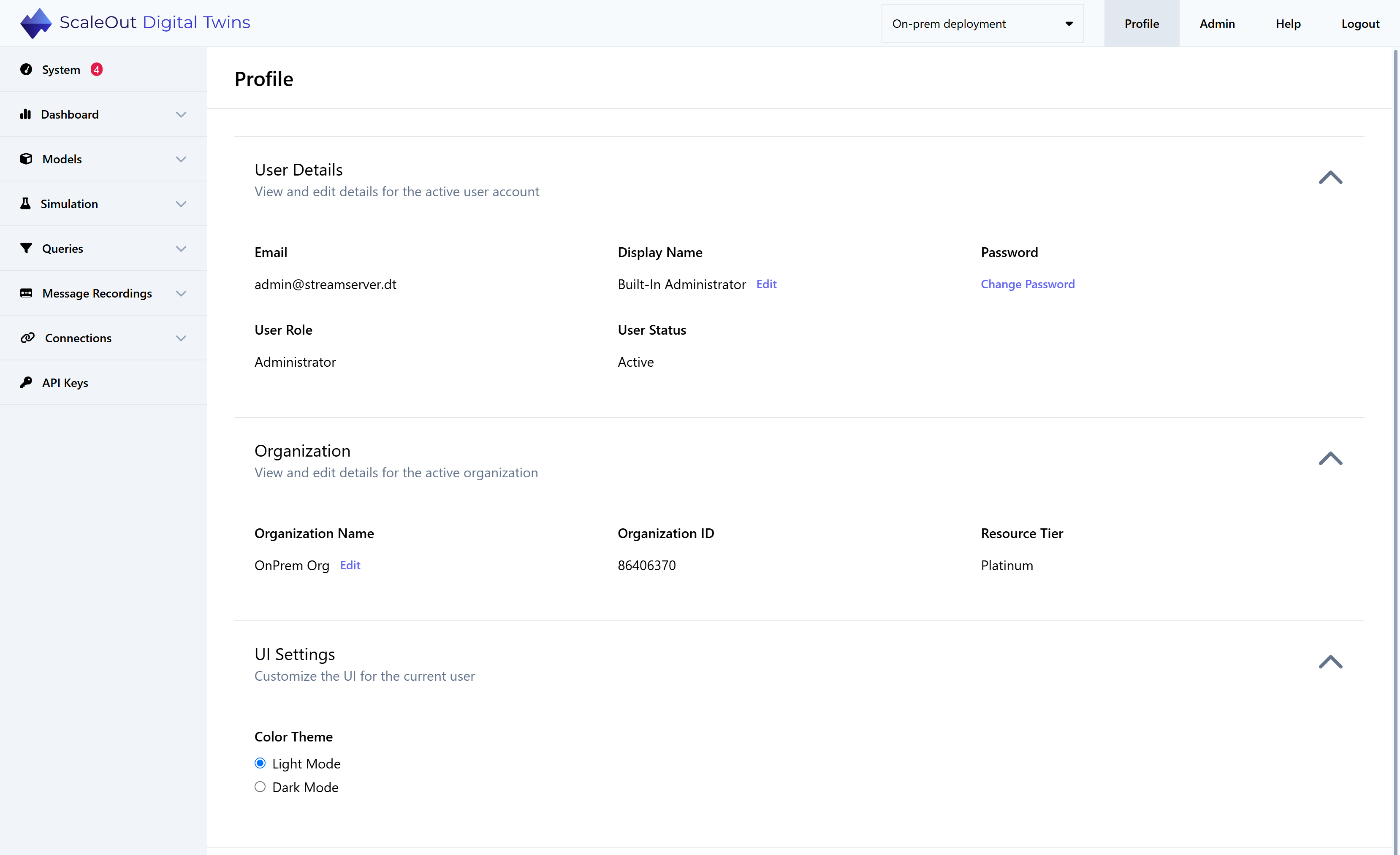
This page shows your user details, information about your organization, and user preferences. Under User Details, you can see your email, display name, role (Administrator or User), and status. Under UI Settings you can change the color scheme, which will last for the duration of your session.
Managing Your Account
Editing Your Display Name
To edit your display name, click the Edit button next to the display name in the User Details section. Enter a new name and click Save to save your changes.
Changing Your Password
To change your password, click the Change Password button in the User Details section. Enter your current password, then enter your new desired password. Enter the password a second time to confirm, then click Change Password to save the change. The new password can be used the next time you log in.
Note
Make sure the new password meets all the requirements:
6-100 characters long
At least one symbol
At least one number
At least one capital letter and one lowercase letter
Other Account Actions
Other account actions, such as changing a user role, resetting a forgotten password, and adding or removing an account can only be performed by an administrator. Please refer to Administrator Options for more details.