Generating Queries and Charts
Generate Queries
To generate a query, first navigate to the Generate Query page via the left navbar.
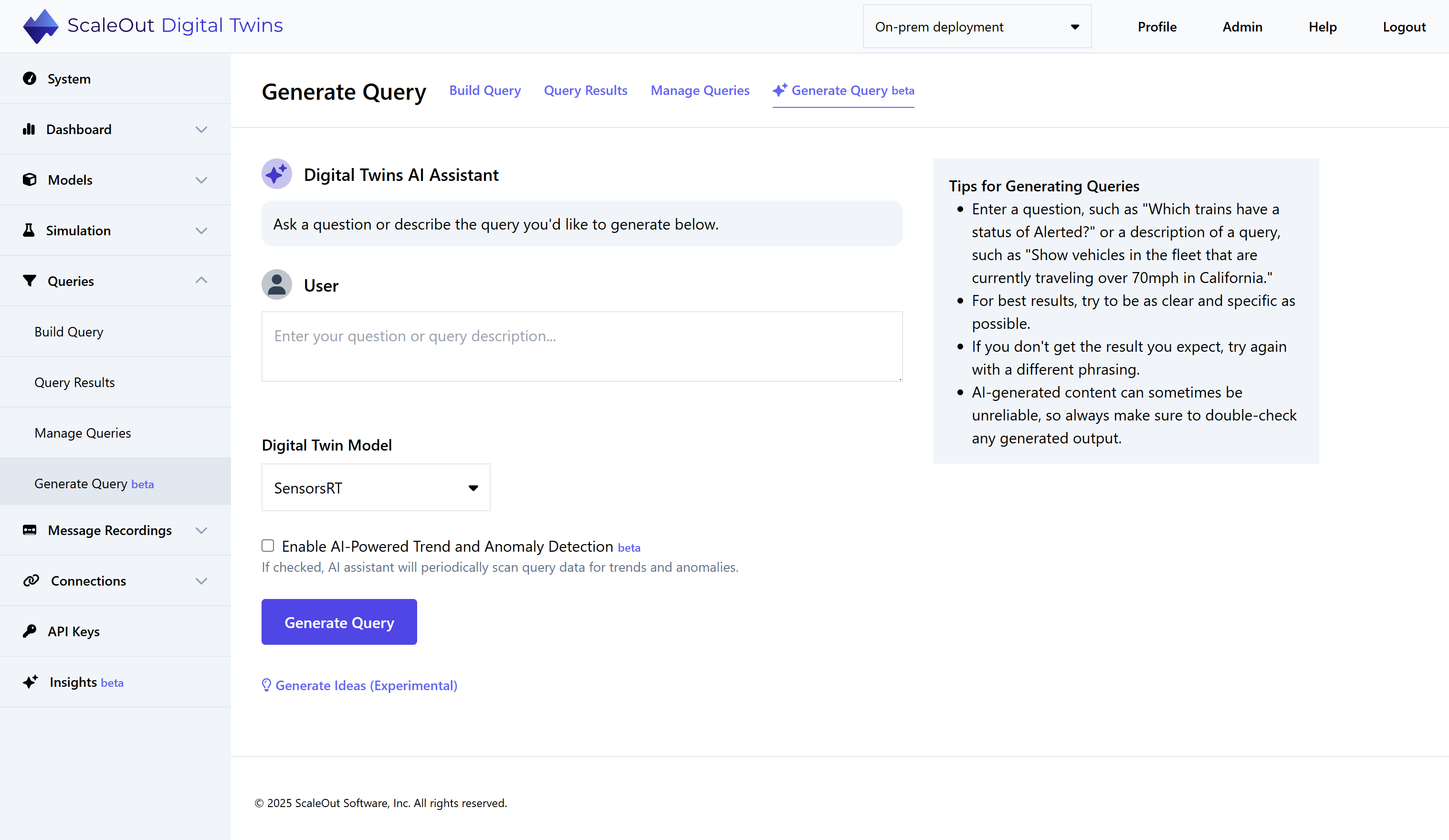
Follow these steps to generate a query:
Select the model you would like to query from the Digital Twin Model dropdown list.
Enter a prompt for a query in the form of a statement or question. The Tips box on the right side of the page gives you some ideas. If you would like to see more ideas, click Generate Ideas to produce some suggestions.
Choose if you would like to enable trend and anomaly detection for the query. You can learn more about this feature in the Trend and Anomaly Detection section of this guide.
Finally, click Generate Query to create the query. If generation succeeds, you will be automatically redirected to the query results. If generation fails, an error message will explain why the AI Assistant could not understand your prompt.
Generate Charts
To generate a chart, first navigate to the Dashboard page and click on an empty slot to place a new chart. (Create a new row if necessary).
You will be redirected to the Add Chart page. Click the Generate Chart tab near the top of the page to switch to Generate mode.
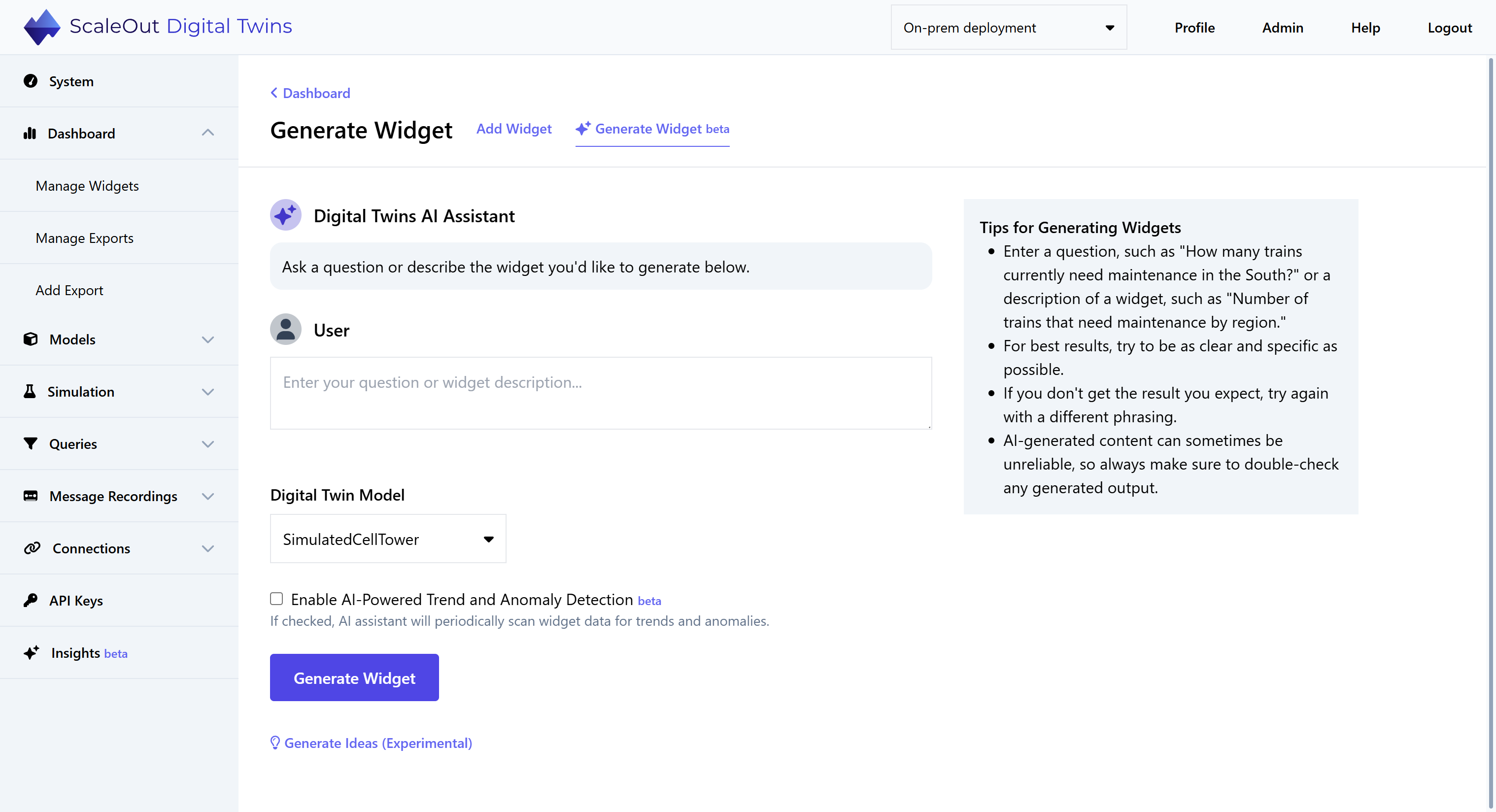
Follow these steps to generate a chart:
Select the model you would like to generate a chart for from the Digital Twin Model dropdown list.
Enter a prompt for a chart in the form of a statement or question. The Tips box on the right side of the page gives you some ideas. If you would like to see more ideas, click Generate Ideas to produce some suggestions.
Choose if you would like to enable trend and anomaly detection for the chart. You can learn more about this feature in the Trend and Anomaly Detection section of this guide.
Finally, click Generate Chart to create the chart. If generation succeeds, you will be automatically redirected to the dashboard. If generation fails, an error message will explain why the AI Assistant could not understand your prompt.
Note
If you generated a chart without first selecting a slot on the dashboard, the new chart can be found on the Manage Charts page.
Open-Ended Query and Chart Generation
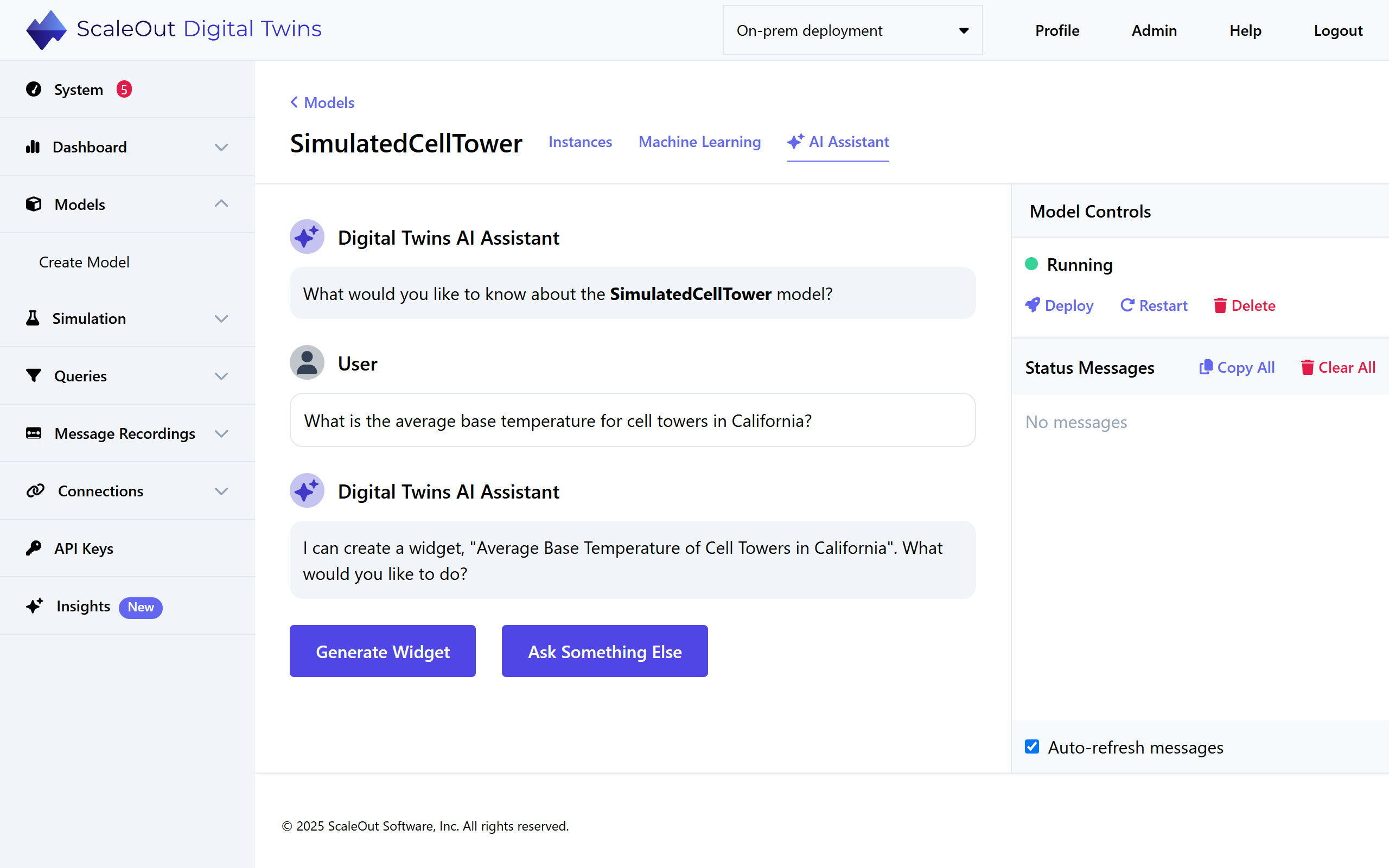
You can also generate queries and charts for a specific model through open-ended chat. To access this page, go to Models, click a model name to view its details, and switch to the AI Assistant tab. Ask a question or make a request, and the AI Assistant will determine if a query and/or chart can be generated to answer it. Click on the Assistant’s proposed query or chart to generate it. To ask another question or revise your prompt, choose Ask Something Else.
Note
You can also ask the AI assistant general questions about digital twin models and about the system, though it may be limited in what information it can access.
Manage AI-Generated Queries and Charts
AI-generated queries and charts appear alongside your manually-created queries and charts on the query results and dashboard pages. You can identify them by a light blue sparkle icon ( ) next to the query or chart name. They can be edited or deleted like normal queries and charts.
General Guidance for AI Prompts
The AI assistant is able to make sense of most prompts that are coherent and relevant to the model. However, if it is consistently giving an error or not producing the expected query/chart, consider the tips below.
For best results, try to be as clear and specific as possible. Subjective or qualitative prompts may not produce the expected results (see examples below).
If possible, refer to names of properties as they are specified in your model.
If possible, use the same formatting for values that is used in your model. For example, if you have a property US_State that uses 2-letter abbreviations, use the 2-letter abbreviation instead of the full state name in your prompt.
If you want the AI Assistant to use a specific title for a query/chart, you can include that in your prompt.
For charts, keep in mind the possible operators (min, max, avg, count, sum) and use these in your prompt. Asking for a type of chart that is not supported will not work.
For charts, if you would like a specific type of chart (e.g. pie, column), you can specify that in the prompt.
As with queries and charts created manually, AI-generated queries and charts can only correspond to a single model. Queries and charts that make reference to multiple models are not possible at this time.
Complete sentences, grammar, and politeness don’t typically affect the quality of the AI Assistant’s output. For example, “Please show me a map of all the vehicles in WA” and “map vehicles in WA” are equivalent.
Examples
Good Query Prompt: “Show all vehicles with currentStatus Active and speed greater than 80”
This prompt uses the exact name and value of a model property (currentStatus Active) and an objective constraint for speed, which the AI Assistant can easily translate into where clauses.
Bad Query Prompt: “Show all vehicles that are going too fast”
This prompt uses a subjective statement. The AI Assistant’s interpretation of “too fast” might differ from yours.
Good WiChartdget Prompt: “Make a bar chart of average speed by state in WA, OR, and CA”
The AI Assistant can easily extract the desired aggregation operator, group-by field, and where clause from this statement.
Bad Chart Prompt: “Make a chloropleth map of standard deviation of speed in southern states”
This prompt asks for an unsupported visualization type (chloropleth map) and operator (standard deviation), with an ambiguous constraint (“southern states”)